Batch Tagging Multiple Views
Process all mechanical plans for a building in one operation.
Last updated: 2024-12-01
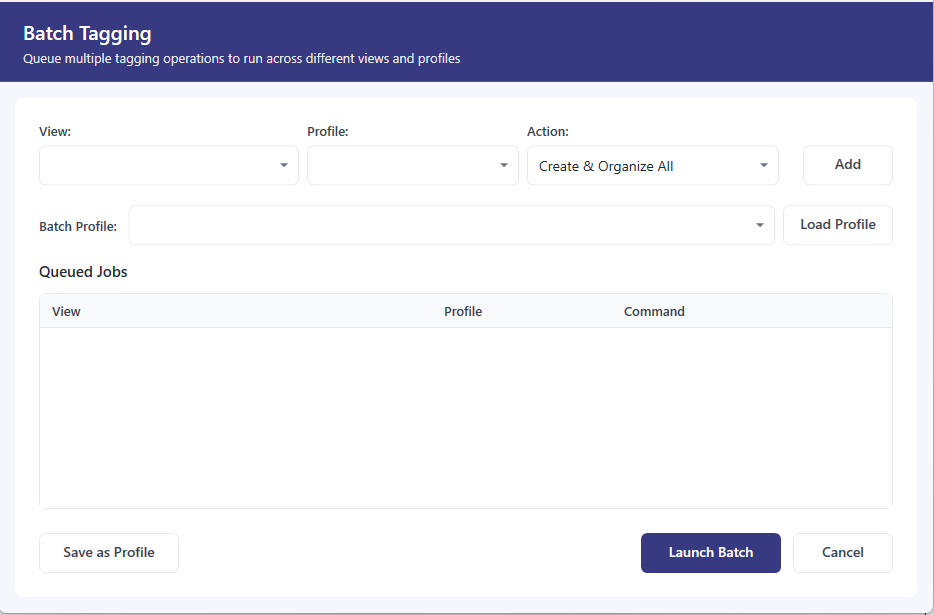
Batch Tagging lets you apply your tagging strategy to many views at once. If your project uses consistent view templates and naming conventions, you can filter and select views quickly, then let Autotag process them while you continue working.
When to Use Batch Tagging
- Tagging all mechanical floor plans for a multi-story building
- Applying consistent tagging across all views using a specific view template
- Re-running Organize Existing Tags after profile changes
- Processing coordination views before a milestone
How It Works
Open Batch Tagging
In the Tagging ribbon, click Batch Tagging. The window shows all taggable views in your project.
Filter and select views
Use filters (level, view template, discipline) to narrow the list. Check the views you want to process.
Choose profile and command per row
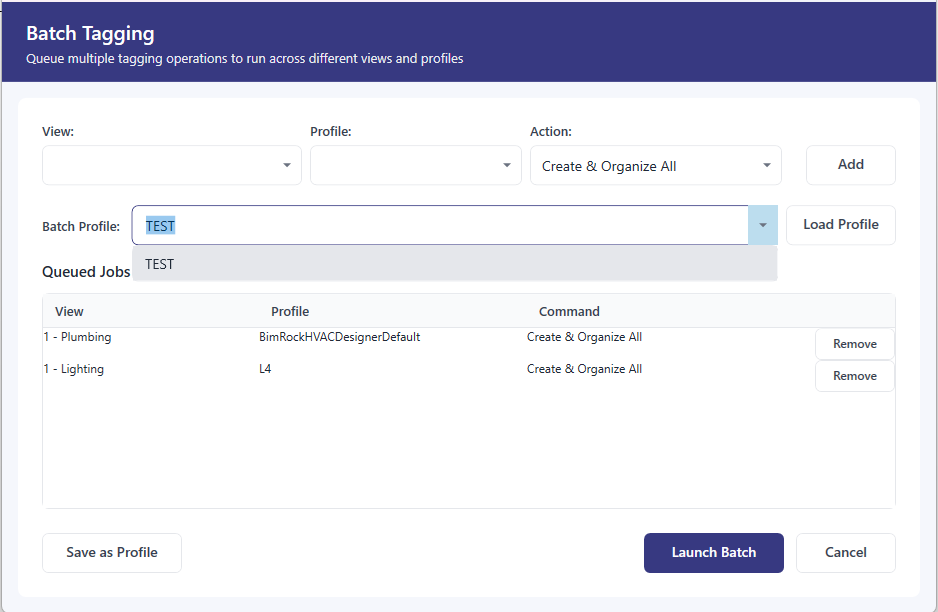
For each view, select which profile to use and which command (Create & Organize All, Create & Organize New, or Organize Only).
Click Launch
Jobs are queued and processed sequentially. Each view opens, runs, and closes before the next begins.
Job Queue Behavior
Batch jobs use the same job queue as single-view operations:
- Jobs process sequentially—one view at a time
- The Jobs panel shows which view is currently processing
- You can continue modeling or reviewing while jobs run
- Cancel or retry individual jobs from the Jobs panel
Best Practices
- Test your profile on a single view before running a large batch
- Save your project before starting—batch operations create many transactions
- Group similar views (all floor plans, all sections) for consistent results
- Review a sample of tagged views before finalizing the entire set
- Run large batches during off-peak hours if your model is complex
Handling Failures
If some views fail during batch processing:
- Successful views are not affected by failures in other views
- Check the Jobs panel for error details (missing tag families, unsupported view types)
- Fix the issue and re-run just the failed views